MacBook Pro14″ (M4 M4 Max M4 Pro)
$28.99
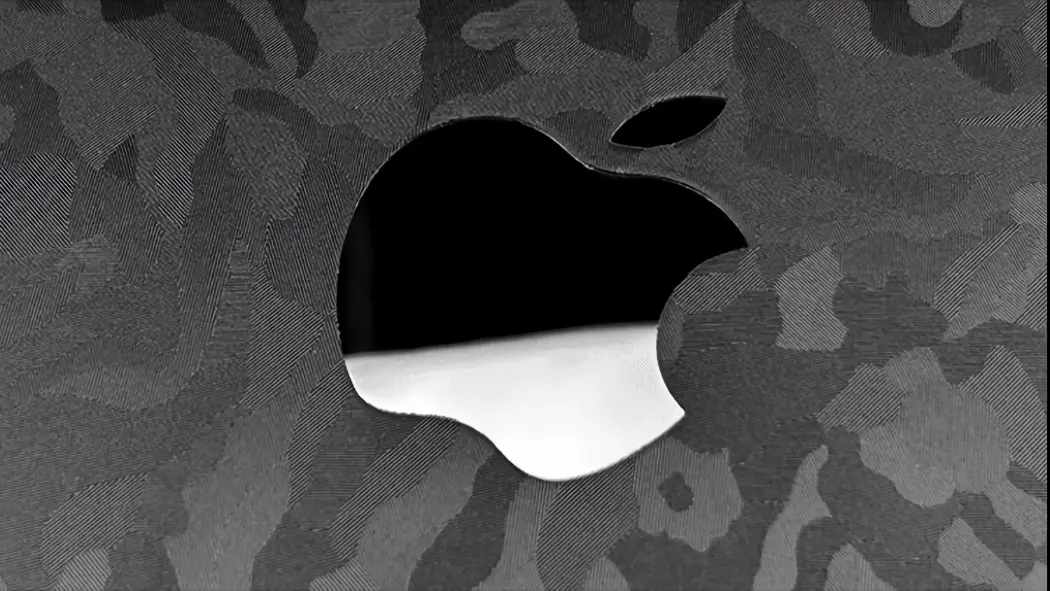
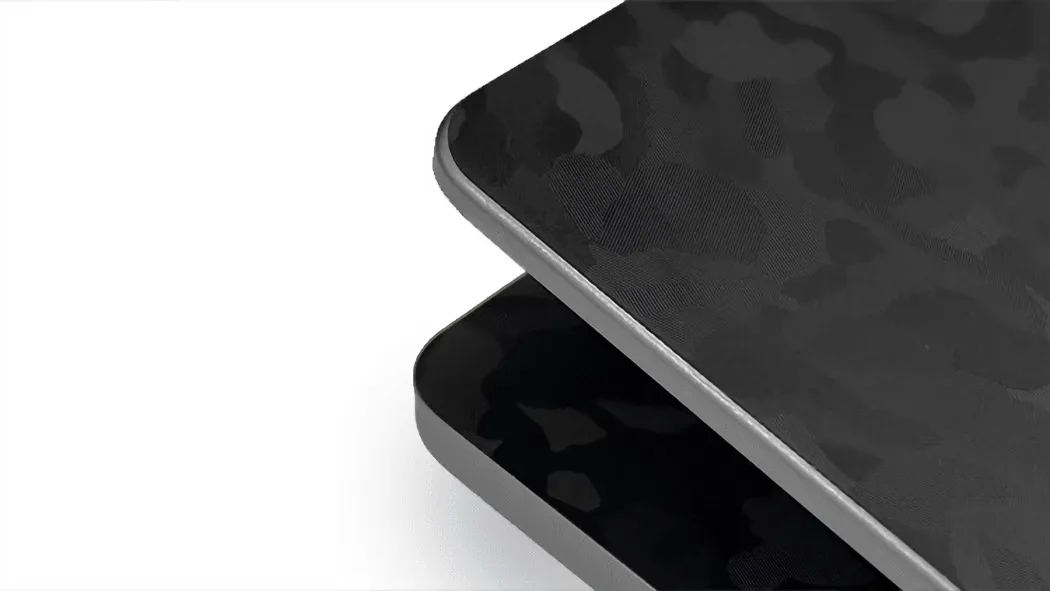
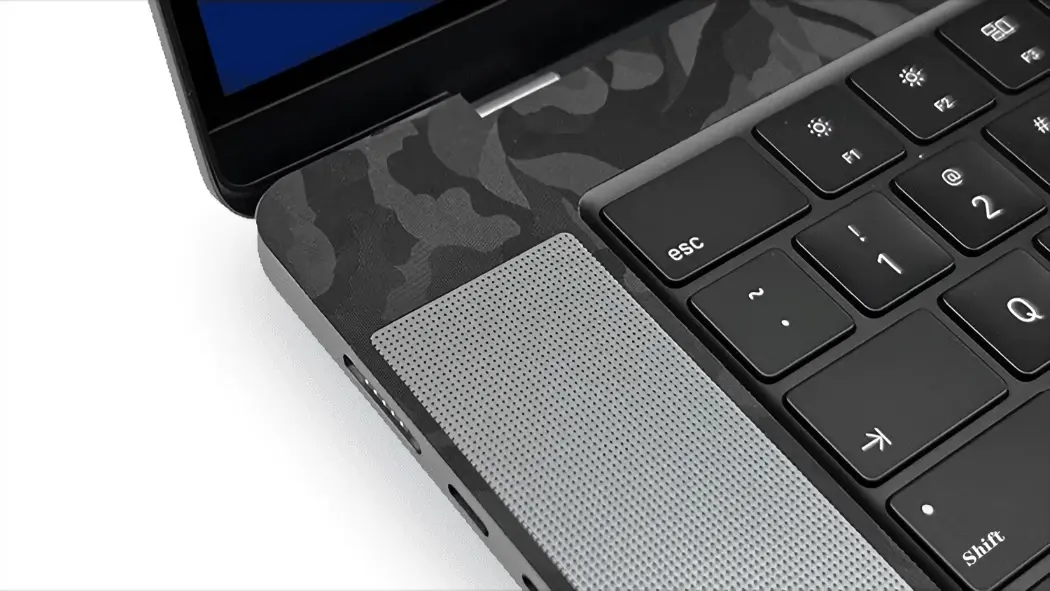
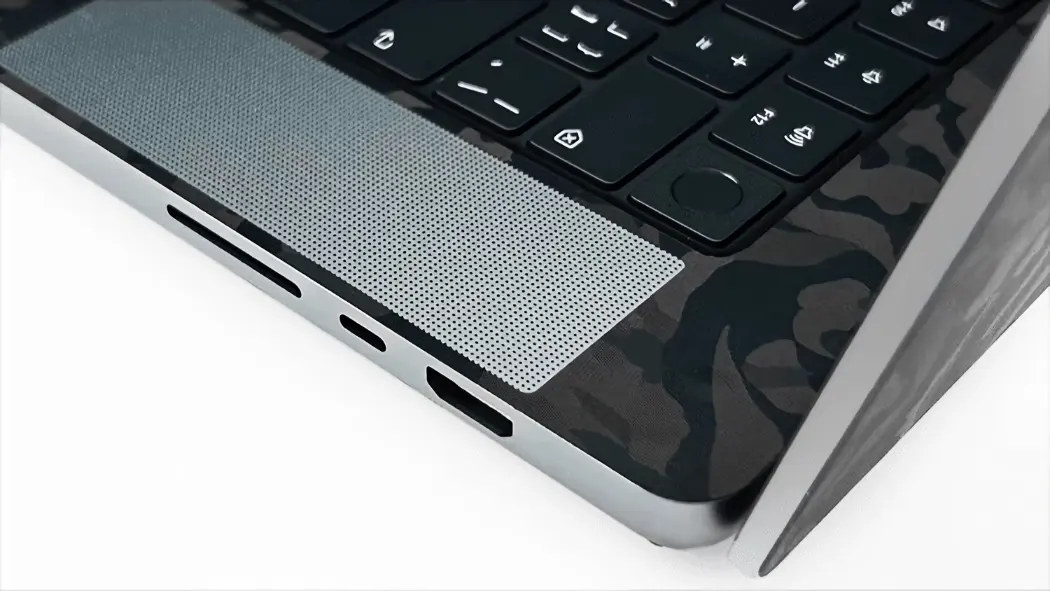
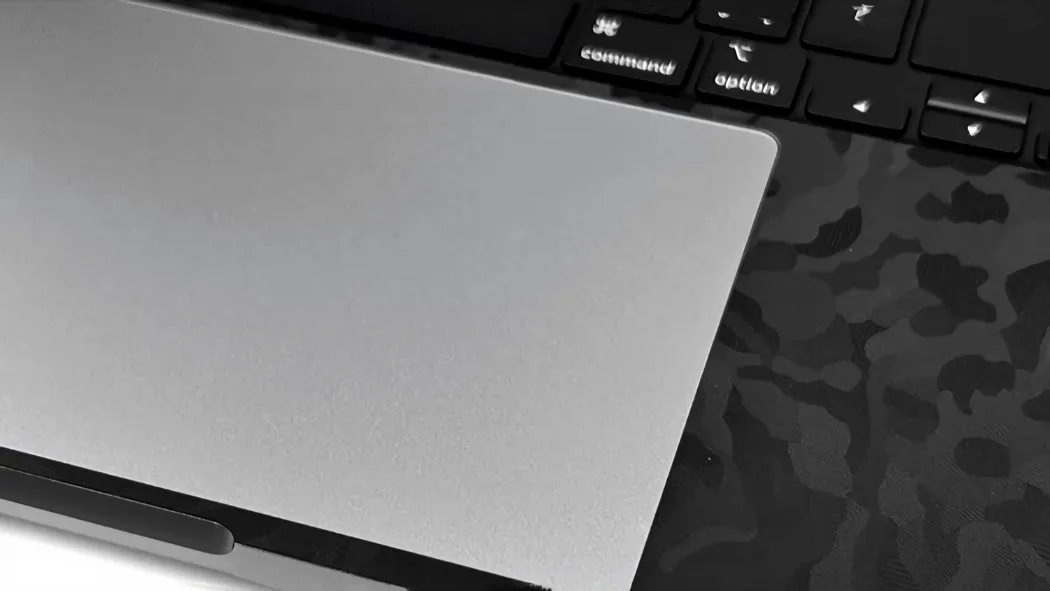
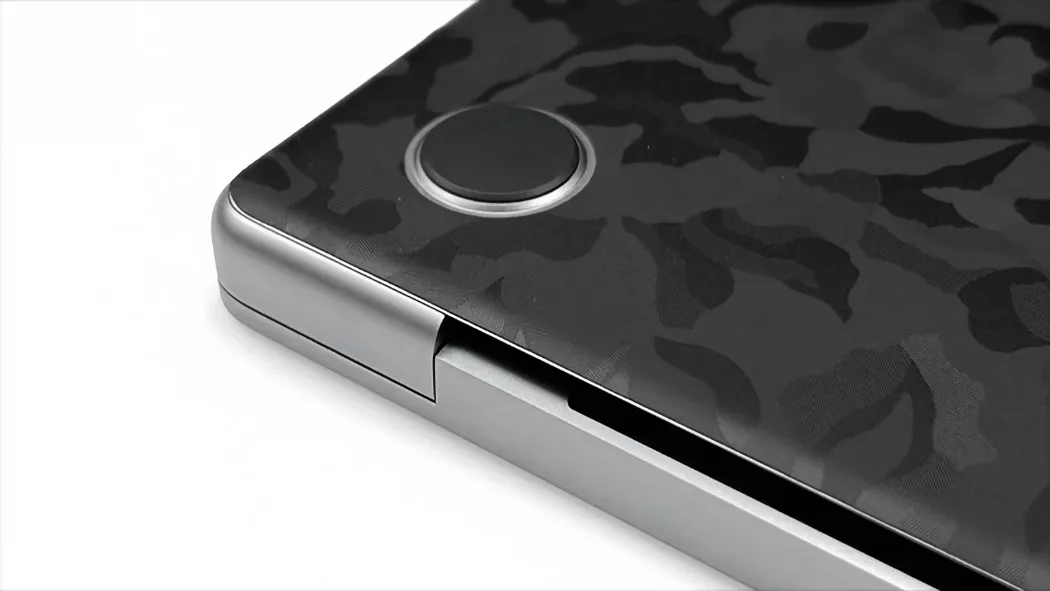
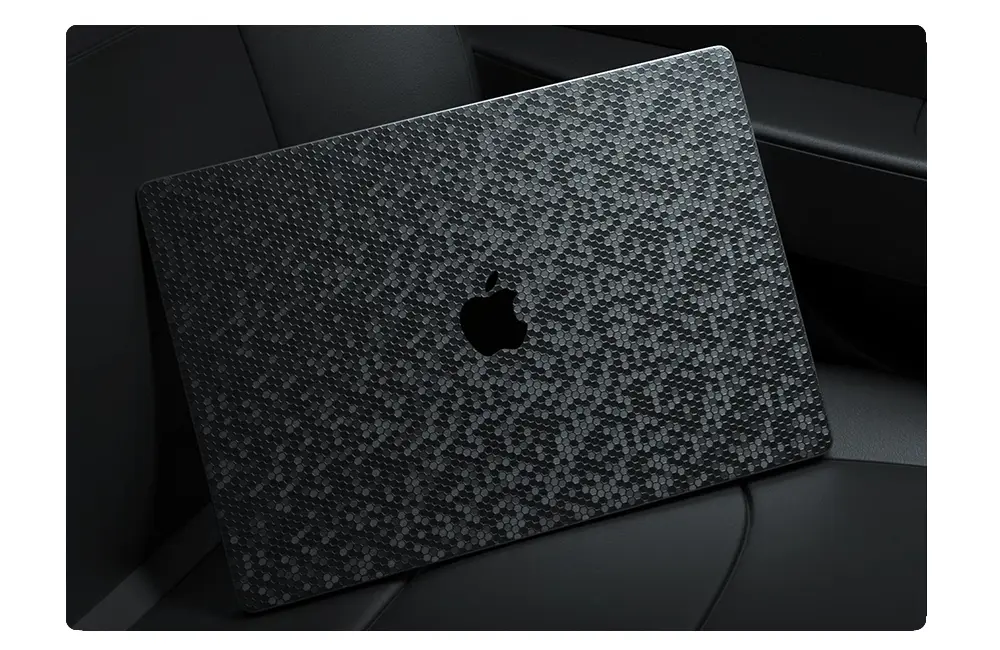
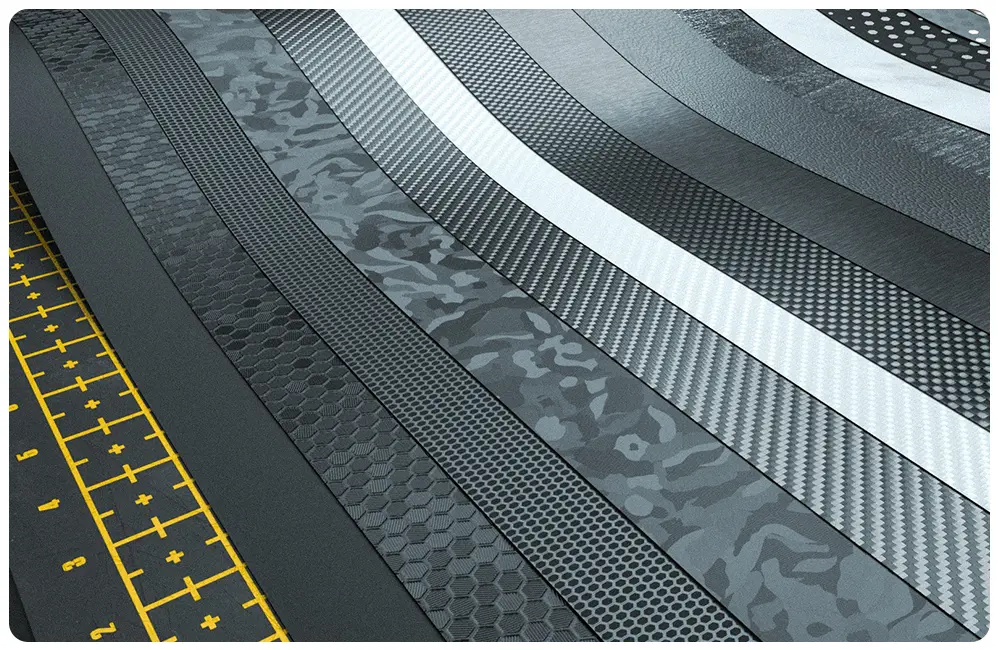
VibeDecal Skins crafted exclusively for Apple MacBook, featuring premium removable cast vinyl material and a satin finish coating for enhanced protection. Compatible with all MacBook models – including MacBook Air and MacBook Pro – available in three coverage options, with an optional cutout for the Apple logo.
Installation Video
Not sure how to get set up? Catch the full install process on our YouTube channel.
VibeDecal In-House Manufacturing Facility
· Closed Database
· End-to-End Supply Chain from Source to Consumer
· Over 90,000 stickers manufactured in 5 years
Knowledge base
Device Identification
Having trouble? We are here to help!
FAQ
Q: What if I mess up installing it?
A: It is not uncommon to require a retry during installation – and this is a core advantage that makes Vibedecal a trusted choice, backed by our Hassle-Free 100% Satisfaction Guarantee.
We acknowledge that accidental damage may occur when applying your skin. In such cases, we will provide a brand-new replacement at no cost to you; you need only cover the return shipping expense.
For swift assistance, please email a clear photo of the installation damage to help@vibedecal.com, and our support team will ensure your issue is resolved efficiently.
Email: help@vibedecal.com
Q: What preparations are required before applying a laptop skin?
A: ① Make sure the laptop case is free of dust, oil, and fingerprints—wipe it down with alcohol pads and let it air dry completely.
② Turn off the laptop and unplug the power adapter to prevent laptop body heat from compromising adhesive strength.
③ Measure your laptop’s dimensions, then align the skin with the corners, ports, and logo position of the device.
④ If the skin comes with transfer tape, first check that the tape adheres firmly to the skin surface.
Q: What should I do if the laptop skin is applied crookedly?
A: If the skin was just applied and the adhesive hasn’t fully set, gently lift the edge of the skin with your fingernail or a plastic squeegee—be sure to do this gently. Reposition it slowly to the correct alignment, smoothing it out with the squeegee as you adjust.
If the skin has been applied for more than 24 hours, use a hair dryer on the low heat setting (around 104°F/40°C) to lightly warm the edges. Once the adhesive softens, you can readjust the skin—avoid forceful peeling, as this may warp the skin.
Q: Will adhesive residue be left after removing the skin? How to clean it?
A: High-quality PVC/PET skins use low-tack, residue-free adhesive, so little to no residue remains after removal. If residue does stick, soften the adhesive with a hair dryer on warm setting, then wipe it off repeatedly with alcohol pads, essential oil (like fengyoujing) or specialized adhesive remover. Finish with a clean, soft cloth—never scrape with sharp tools.
Q: Can laptop skins be reused after removal?
A: Most one-time-use skins lose most of their adhesiveness once peeled off and can’t be reused. Some skins made with repositionable adhesive can be reapplied shortly after removal, but stickiness weakens with each use, and they tend to attract dust easily.
Q: Can a laptop skin cover scratches and wear on the case?
A: It can cover minor scratches and small wear areas. If scratches are deep (over 0.1mm) or the wear is extensive, the skin’s surface will show bumps and unevenness, affecting appearance. For deep scratches, lightly sand the area to smooth it out before applying the skin.
Q: What should I do if I purchased the wrong model?
Q:How to fix air bubbles after applying the laptop skin?
If the bubbles still don’t go away after three days, follow these steps:
① Small bubbles: Gently puncture the edge of the bubble with a pin tip or utility knife tip, squeeze out the trapped air, then smooth the area with a plastic squeegee.
② Large bubbles: First, use a hair dryer on low heat to warm the corresponding area of the skin. Lift that section of the skin, reapply it flat on the laptop surface, and squeegee from the center outwards to both sides while pressing down, gradually pushing out all trapped air.
Q: Will a laptop skin affect heat dissipation?
A: Regular exterior laptop skins won’t impact heat dissipation. Laptops cool down primarily through internal fans and vents—just avoid covering air intake grilles, exhaust ports, and heat-dissipating areas during application.
Q: Will applying a skin damage metal or matte laptop casings?
A: No. The adhesive on premium skins contains no corrosive ingredients. As long as you don’t forcefully tear the skin off, it won’t damage the coating on metal or matte surfaces. If your laptop has a easily peeling coating, test the skin on a small corner first.
Q: Are laptop skins water-resistant and scratch-proof? How to clean them daily?
A: Glossy/matte PET skins are both water-resistant and scratch-proof, while PVC skins have good water resistance but are less scratch-resistant. For daily cleaning, wipe gently with a slightly damp soft cloth. Avoid prolonged soaking in strong solvents like alcohol or acetone, as they can cause the skin’s design to fade.
Q: Can I use a keyboard cover and laptop sleeve after applying a skin?
A: Yes. The skin attaches to the exterior case, while keyboard covers and sleeves protect the keyboard and laptop respectively—they don’t interfere with each other. Choose a sleeve with a matching size to avoid tight squeezing that could peel the skin edges.